Featured

Adding live chat to your website used to mean hiring developers, juggling custom code, or dealing with clunky integrations. But not anymore. Thanks to no-code AI tools through which you can now set up a smart, on-brand chat assistant without writing a single line of code.
Whether you are looking to automate customer support, capture more leads, or just be available 24/7, launching AI chat is faster and easier than ever. In this article, I will show you exactly how to do it in minutes without any technical skills.
Why Add AI Chat to Your Website?
AI chat isn’t just a nice-to-have anymore, it is a competitive advantage. Here is what it unlocks for your business:
24/7 Instant Replies: Even when your team’s offline, your AI agent can handle common questions, schedule appointments, and guide users instantly.
Fewer Hours Spent On Calls & Emails: Let AI handle repetitive queries like business hours, pricing, or onboarding steps, freeing your team for high-value conversations.
Better Customer Experience: No hold times. No “we will get back to you.” Just fast, helpful answers delivered in your tone of voice, day or night.
If your website gets visitors, they will always have questions. Making sure there are easy and custom answers to every question helps build instant customer loyalty.
The Fastest Way to Add AI Chat Without Code
If you want AI chat on your website today without a developer, the quickest path is using a no-code AI support agent that is trained on your existing content and deployed with a simple embed snippet.
Here is what the “fastest” no-code setup typically looks like and how tools like MeetRaya are built to work:
Train the AI using your website or FAQs
Instead of writing scripts or building conversation trees, you simply:
Add your website URL, and
Write FAQ / help docs
The AI reads your content and automatically generates a knowledge base and default answers so your chat can immediately handle common questions like pricing, business hours, scheduling, refunds, onboarding, and more.
Test it instantly and refine answers in plain English
Once it is created, you can chat with the AI right away and adjust answers by giving simple instructions like:
“Be more friendly.”
“Shorten this answer.”
“Add weekend hours.”
“If the question is about billing, ask for the invoice number.”
This means you don’t need a technical person to “program” the bot, you improve it like you would coach a support rep.
3. Copy / paste a widget code to go live
Finally, you drop a small snippet into your website, just like you would embed:
Google Analytics
Facebook Pixel
Calendly
A live chat widget
Once it is pasted, your AI chat is live and answering visitors in real time.
Make it match your brand
Most no-code tools also let you quickly adjust:
Widget colors and styling
Tone of voice
Welcome message
Data capture prompts (name, email, phone, context)
So the chat experience feels like part of your site, not a random add-on.
Step-by-Step: Add AI Chat in a Minute
Here is a simple, no-developer workflow you can follow to add AI chat to your website quickly. This applies to most no-code AI chat tools, including MeetRaya
Step 1: Create your AI chat account
Sign up and create a new AI agent. Most platforms let you start without a credit card, so you can test everything before committing.
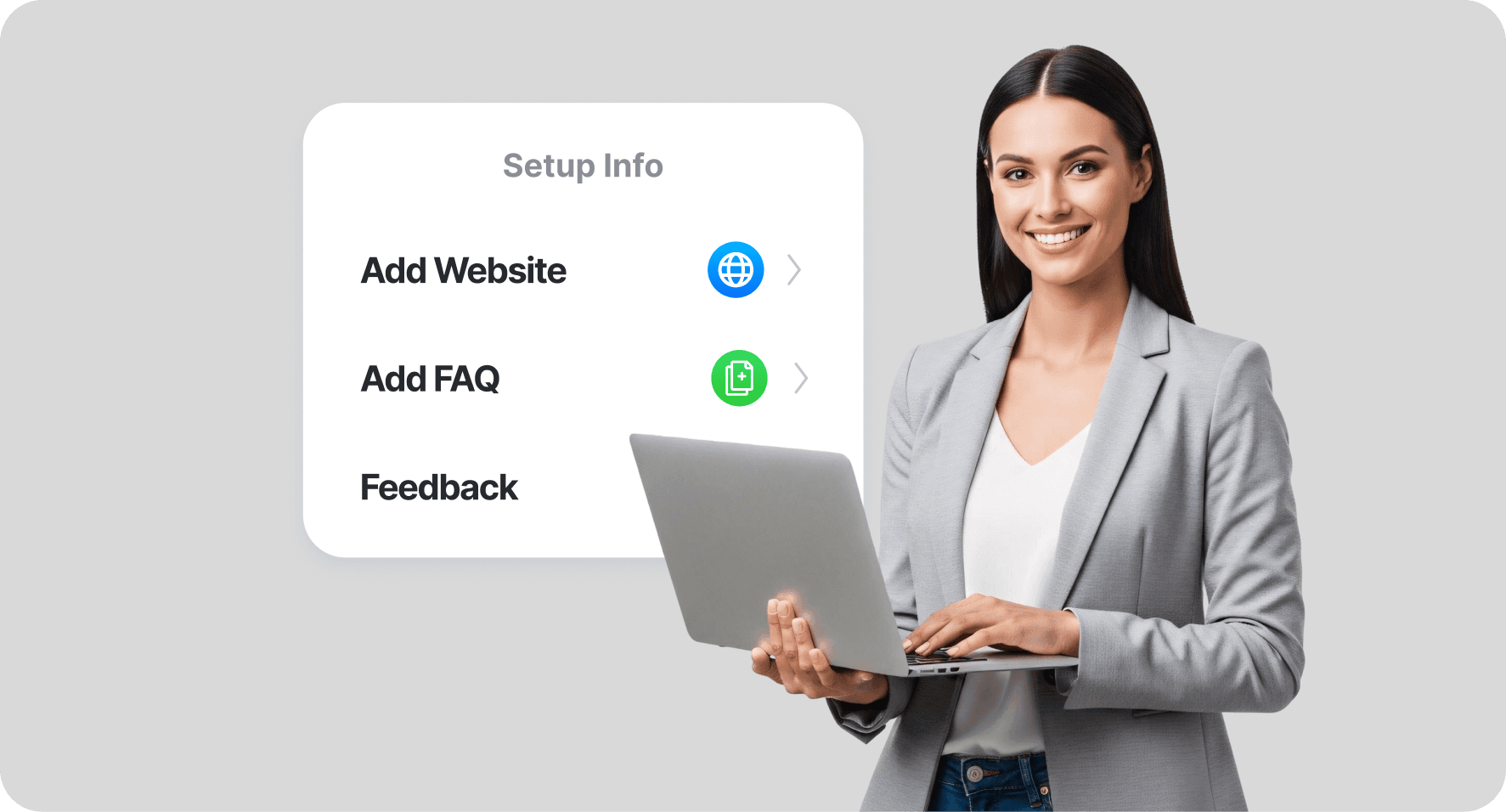
Step 2: Add your website URL
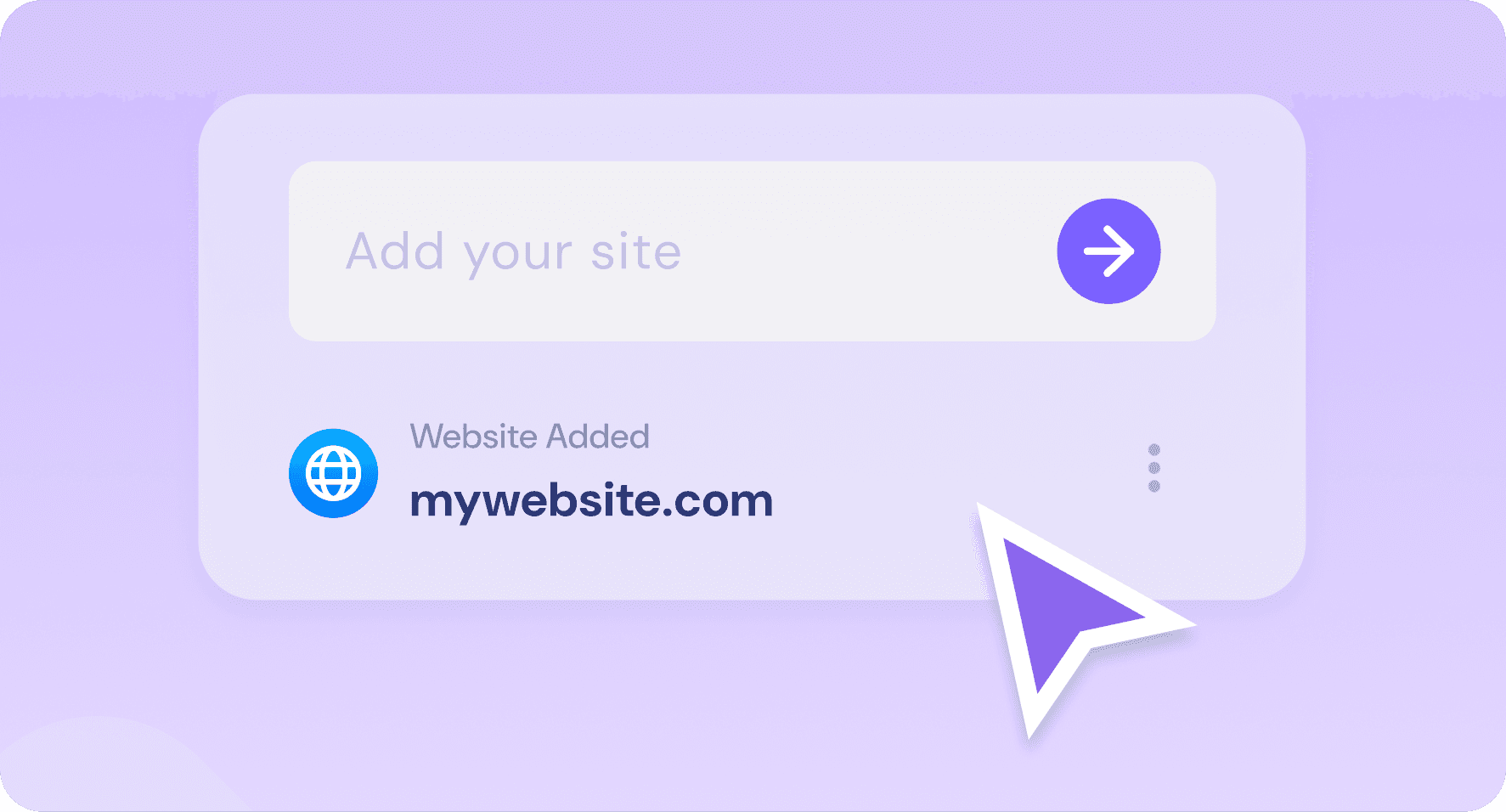
During setup, you will be asked for:
Your website URL (so the AI can learn your pages), and/or
FAQ texts.
This is what “trains” the AI so it can answer questions accurately using your real content.
Step 3: Set the basics
Before going live, set a few simple defaults:
Tone of voice (friendly, professional, concise, etc.)
What the AI should do if it is unsure (e.g., ask a follow-up question or offer to collect contact info)
What info it should capture (name, email, phone, order number, etc.)

Step 4: Test the chat and improve responses
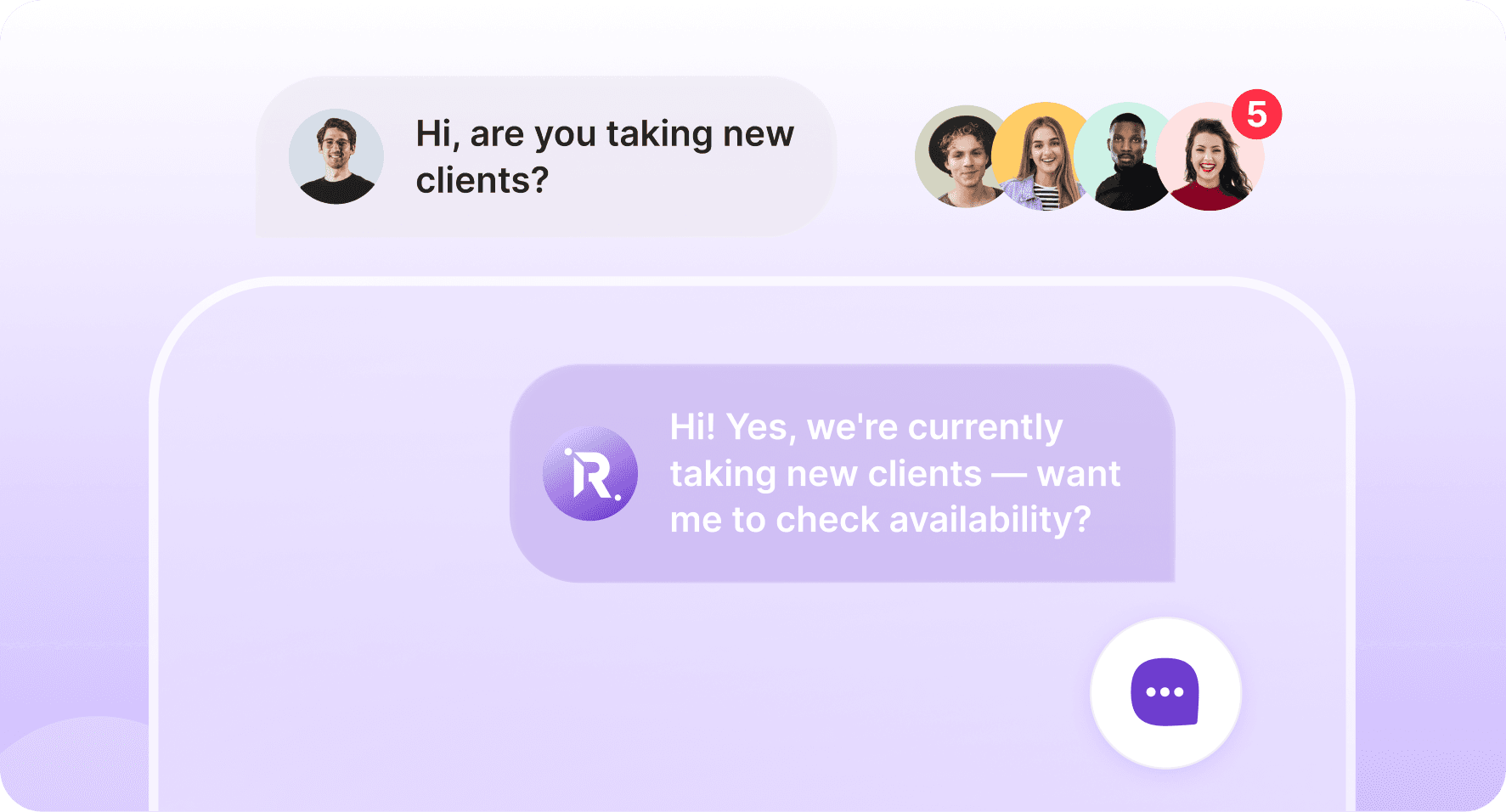
Ask it real questions your customers ask, like:
“What are your business hours?”
“Do you offer refunds?”
“Can I schedule a call?”
“How do I get started?”
If anything feels off, refine it immediately by giving a direct instruction such as:
“Make this shorter.”
“Mention weekend hours.”
“Add a link to our pricing page.”
“If it's a technical issue, ask what device they are using.”
Step 5: Copy the widget embed code
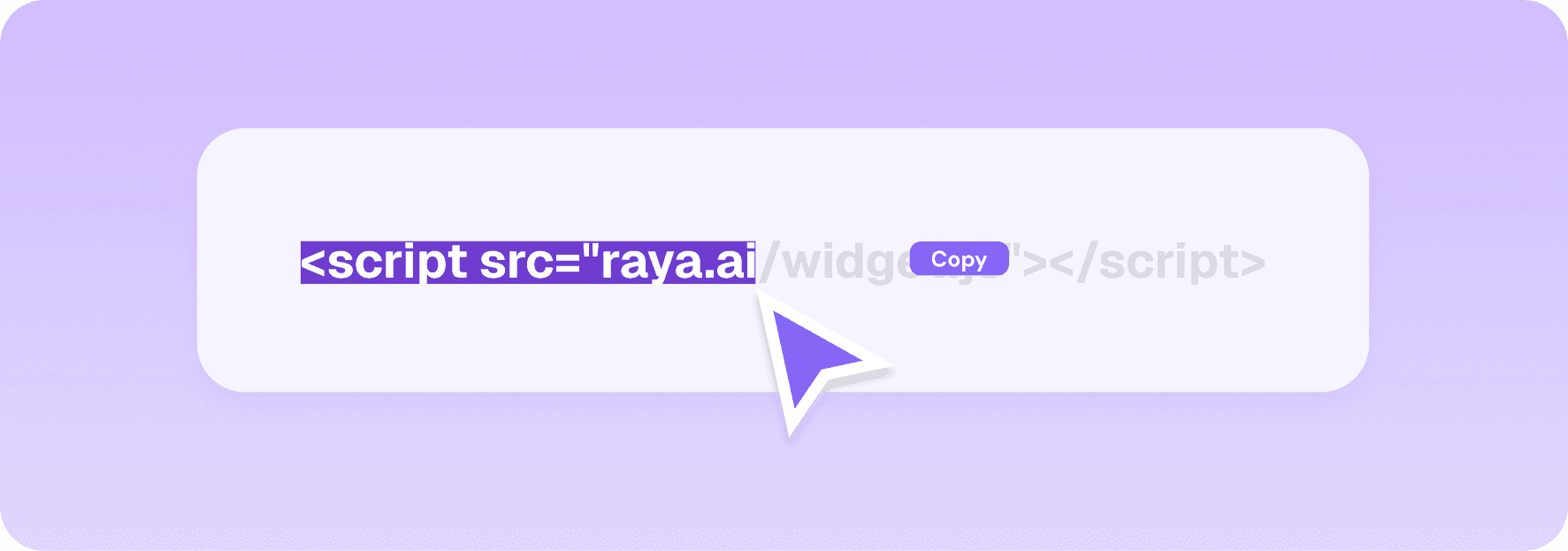
Once you are happy with the responses, the platform will generate a simple embed snippet, usually a line of JavaScript like:
<script src="agent-widget.js"></script>
You dont need to understand the code, just copy it.
Step 6: Paste it into your website
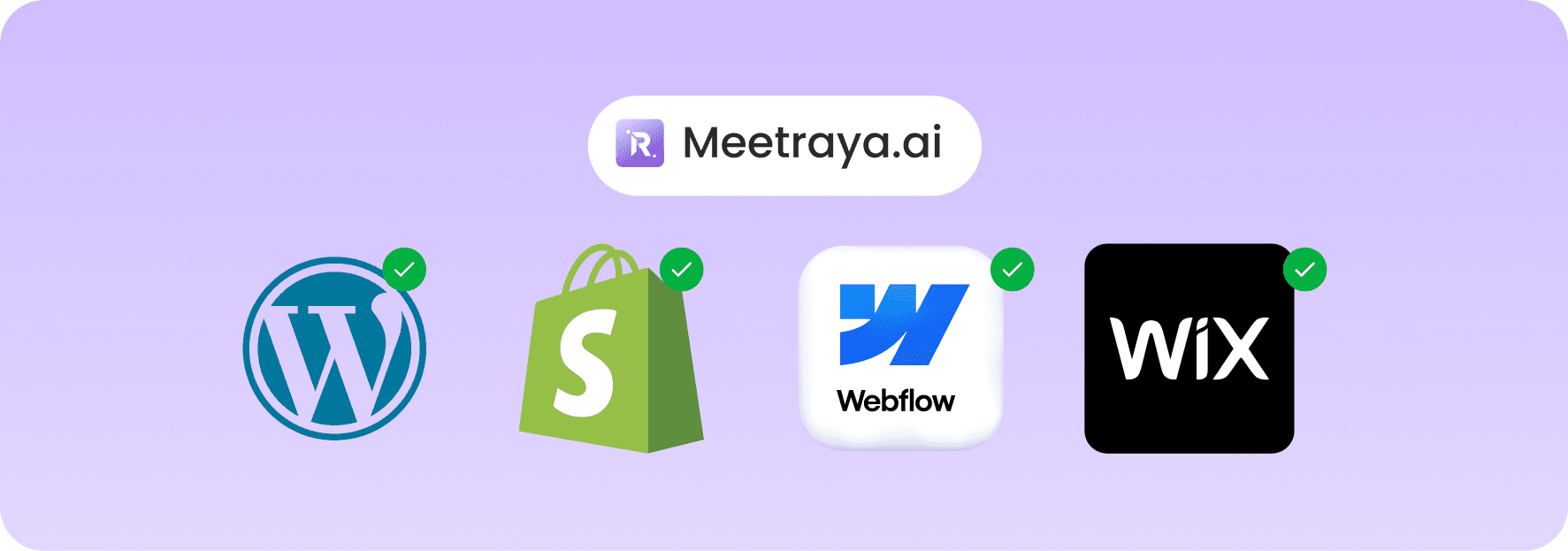
Where you paste depends on your site builder:
WordPress: Add it to your theme header/footer or use an “Insert Headers and Footers” plugin
Shopify: Paste into theme.liquid (often before </body>)
Webflow: Add to Project Settings → Custom Code
Wix/Squarespace: Add via Settings → Custom Code / Code Injection
Once saved and published, your AI chat widget should appear immediately.
Step 7: Go live and keep improving
After launch, monitor:
What people ask most
Where the AI gets stuck
Which questions lead to conversions
Then update your content or refine responses anytime. The best part about no-code AI chat is you can keep improving it without needing engineering help.
What to Look For in a No-Code AI Chat Solution
Not all “AI chat” tools are created equal. If you want something you can launch yourself (and that actually helps customers), here are the key things to look for:
1) True No-Code Setup
You should be able to go live with:
A website URL or FAQ
A simple copy/paste embed snippet
If it requires APIs, webhooks, or engineering time, it is not truly no-code.
2) Easy Training From Your Content
The tool should learn from:
Your website pages
FAQs / PDFs / help docs
Knowledge base articles
This ensures the AI gives accurate answers instead of generic responses.
3) Instant Testing
Look for a platform where you can:
Test the bot immediately
Adjust answers quickly in plain language
Retrain anytime without limits
This is critical because your business info changes often.
4) Brand Tone and Customization
A good AI chat should sound like your business. It should support:
Tone of voice controls (friendly, concise, professional)
Widget styling (colors, design)
Custom greetings and fallback messages
5) Security and Compliance
If you operate in healthcare or handle sensitive data, prioritize:
Encryption
Role-based access
HIPAA-compliant design (For Healthcare)
6) Clear Pricing
Choose something with:
A usable free trial or free plan
Transparent limits (messages, knowledge size)
Plans that scale as your traffic grows
Conclusion
Adding AI chat to your website does not require a developer anymore. With modern no-code tools, you can train an AI agent on your website or FAQs, test responses instantly, and embed it with a simple copy-paste snippet, just like Google Analytics. The result is 24/7 support and fewer repetitive questions for your team. If you have been waiting because it felt “too technical,” this is your sign to try it. Pick a no-code AI chat tool like MeetRaya, set it up in minutes and start improving your customer experience.
Set it up in 10 minutes, no developer needed.